A client needs a small change today: a new security group, a menu, a window action and a tweak to a form view. In Developer Mode you can build all four in the UI in under an hour. The problem starts when one of those records has to be referenced somewhere else, because Odoo refers to records by XML ID, and records created in the UI don’t get one.
The fix is already in standard Odoo: the External Identifiers menu and its __custom__ module. I’ll walk through it on Odoo 20.0, using a security group as the example, and then show the same steps for menus, views and actions.
Why a UI record needs an XML ID
Every record has a database ID, such as 265. That number only means something inside one database.
An XML ID like __custom__.group_special_next_invoice_access is a stable, readable name. Odoo expects one in a view’s groups attribute and in env.ref() or has_group() calls inside server actions. It also makes data imports update existing records instead of creating duplicates.
Even for records you never reference, I add one. The next consultant who opens the database can tell immediately that the record was created by hand rather than by an installed module.
When to use this, and when not to
I use this for small, client-specific configuration on a live database. It’s the right choice when there’s no development pipeline, or when the change is too small to justify a module, a review and a deployment.
It isn’t a replacement for a module. UI changes aren’t in Git. Nothing recreates them on a fresh database, and you’ll repeat the work in every environment. If the same configuration has to exist in several databases, write a module.
Step-by-step: a security group as the example
Turn on Developer Mode first: Settings → Activate the developer mode.
Step 1: Create the record
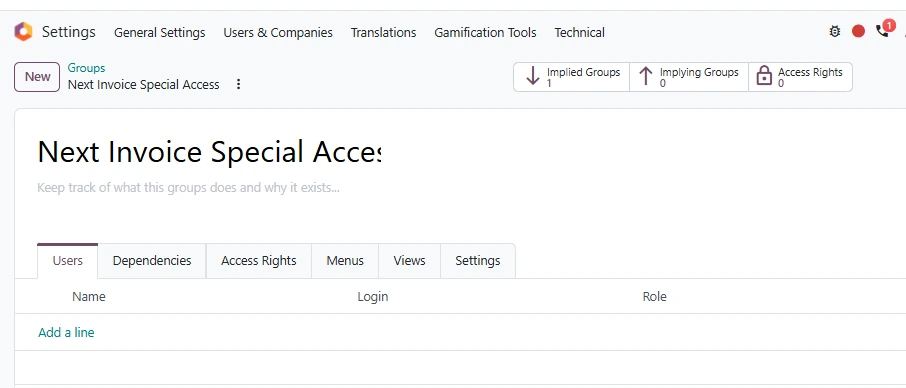
Go to Settings → Users & Companies → Groups → New and name the group. Mine is “Next Invoice Special Access”. Fill in the description, because six months from now nobody will remember why the group exists.
Step 2: Note its database ID and confirm the XML ID is empty
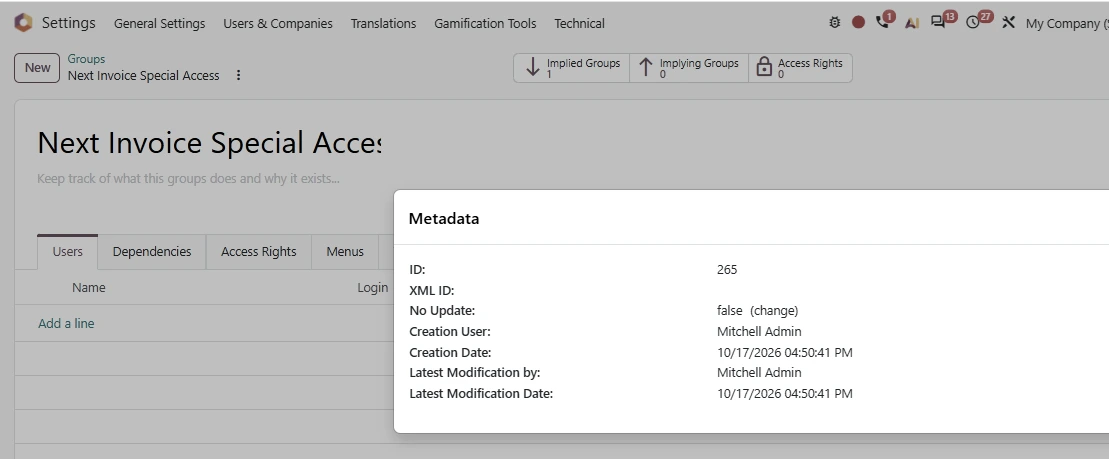
Open the debug menu (the bug icon in the top bar) and open the record’s metadata. The group has an ID (265 here), but the XML ID field is blank. That blank field is the gap we’re closing.
Step 3: Create the external identifier
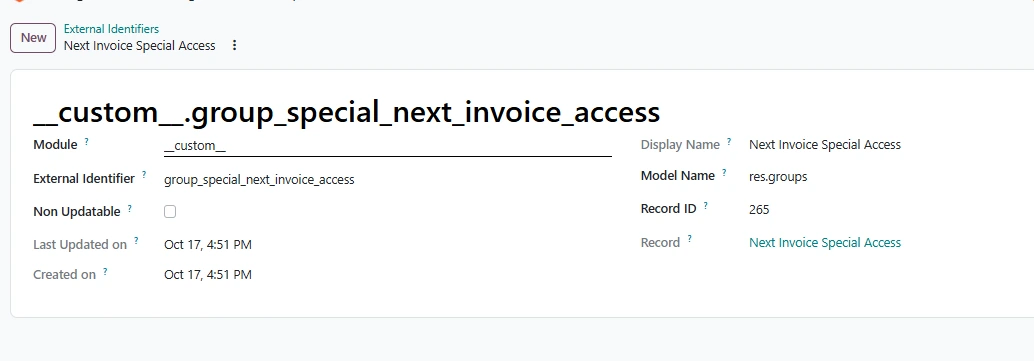
Go to Settings → Technical → Sequences & Identifiers → External Identifiers → New. The Module field is already filled with __custom__. I keep it, because it clearly separates hand-made IDs from module ones.
Fill in three fields:
- External Identifier: a technical name with a type prefix, e.g. group_special_next_invoice_access.
- Model Name: the record’s technical model, here res.groups.
- Record ID: the number from Step 2, here 265.
After saving, the title shows the full reference, __custom__.group_special_next_invoice_access. The Display Name and Record link confirm which record it points to, so always check them.
Step 4: Use the ID
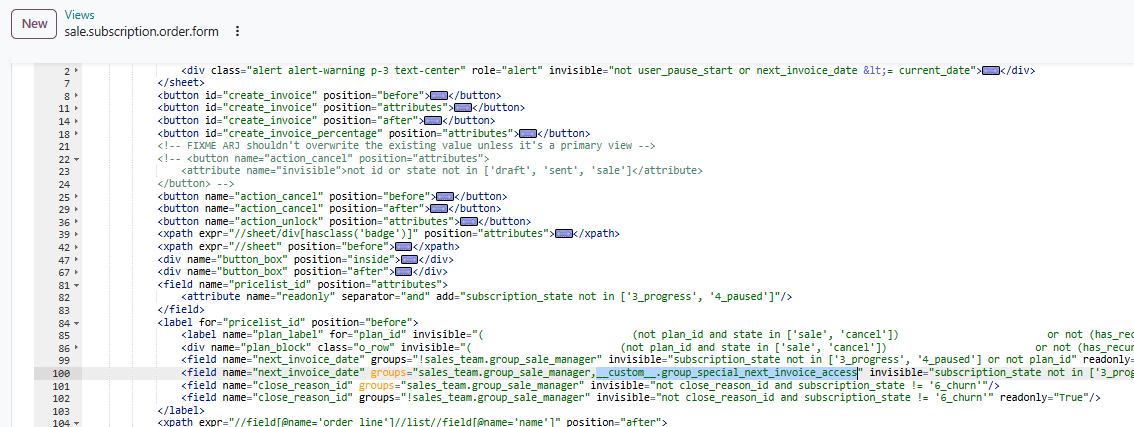
Now the group can be referenced by name. Here I added it to the groups attribute of the next invoice date field on the subscription form, next to the sales manager group:
groups="sales_team.group_sale_manager,__custom__.group_special_next_invoice_access"
The same ID works in server action code, for example
env.user.has_group('__custom__.group_special_next_invoice_access')The takeaway
A record built in the UI becomes a first-class citizen the moment it gets an XML ID, and __custom__ gives it one in a minute without a module. Use it for any record you’ll reference by name, and keep the list of IDs you create.